
CatalogX Blocks Guide: Easily Customize Your WooCommerce Store
With CatalogX, adding essential features like enquiry and quote buttons to your WooCommerce store is simple, thanks to our versatile blocks. Whether you’re building pages from scratch or customizing product pages, our blocks make it easy to enhance your site’s functionality without any coding knowledge.

How to Use These Blocks
1. Add the Blocks to Your Pages
Simply navigate to the WordPress block editor, search for the desired block (e.g., Add to Enquiry or Add to Quote), and insert it into any page or post.
2. Customize the Appearance
Tailor the button text, style, and placement to match your store’s theme for a seamless look.
3. Boost Customer Interaction
Engage your visitors by making it easy for them to inquire about products or request quotes, enhancing your store’s overall functionality.
Here’s a breakdown of the blocks you can use in your WordPress site to maximize the power of CatalogX
Free
Add to Enquiry Block
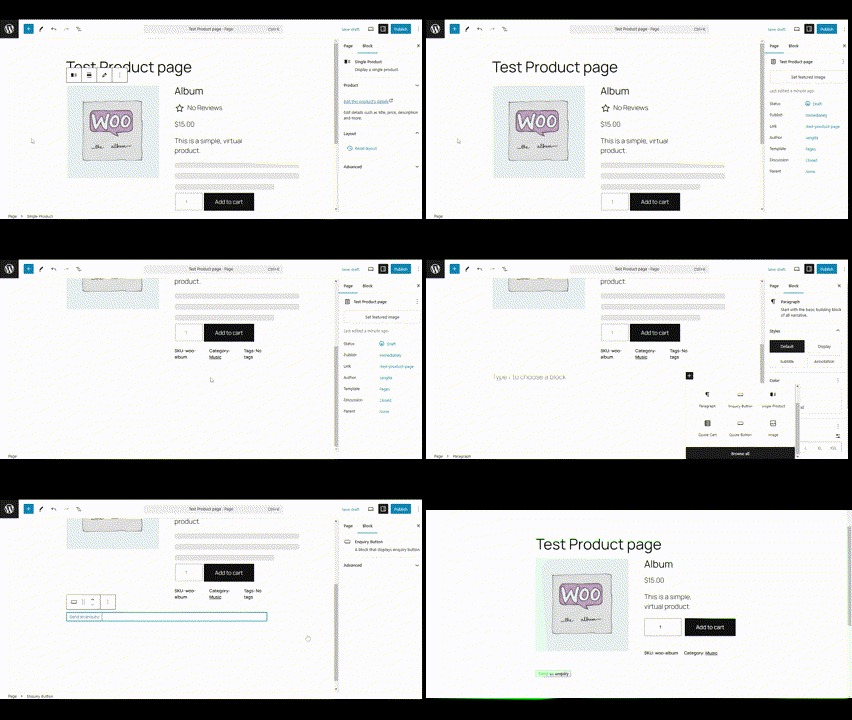
This block adds an Enquiry button to your product page, allowing customers to ask questions about a product directly. It helps facilitate communication and ensures your customers have all the information they need before making a purchase.
How it works
When added, the button will appear on the product page, giving visitors the option to send an enquiry about the item. This helps store owners handle customer questions and improve the overall user experience.
Excellent For
Free
Quote List Block
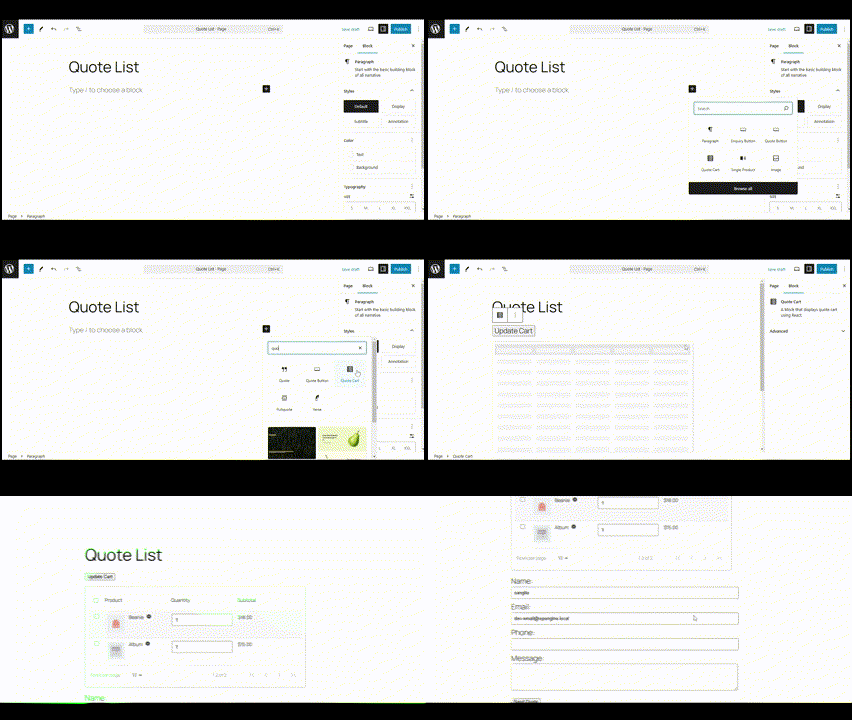
This block displays the customer’s Quote List, showing all the products they’ve selected for a quote. It provides a clear summary of the items they’re interested in and allows easy modification before submission.
How it works
The Quote List shows all items added to the quote and enables customers to review, adjust quantities, or remove products before submitting their final request. It’s user-friendly and keeps the quotation process transparent.
Excellent For
Pro
Enquiry Cart Widget
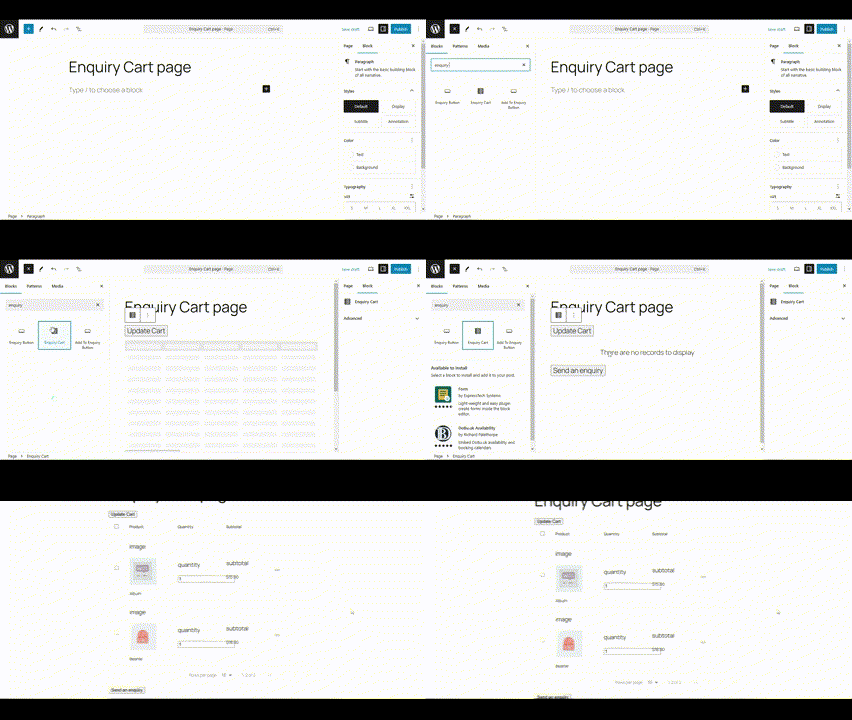
This block displays an Enquiry Cart containing all the products the user has added for enquiry. Customers can review the products they’re inquiring about, and even delete items before submitting the enquiry.
How it works
Once the products are added to the enquiry list, users can access the cart, make adjustments (add/remove products), and proceed to submit their enquiry.
Excellent For
Free
Add to Quote Block
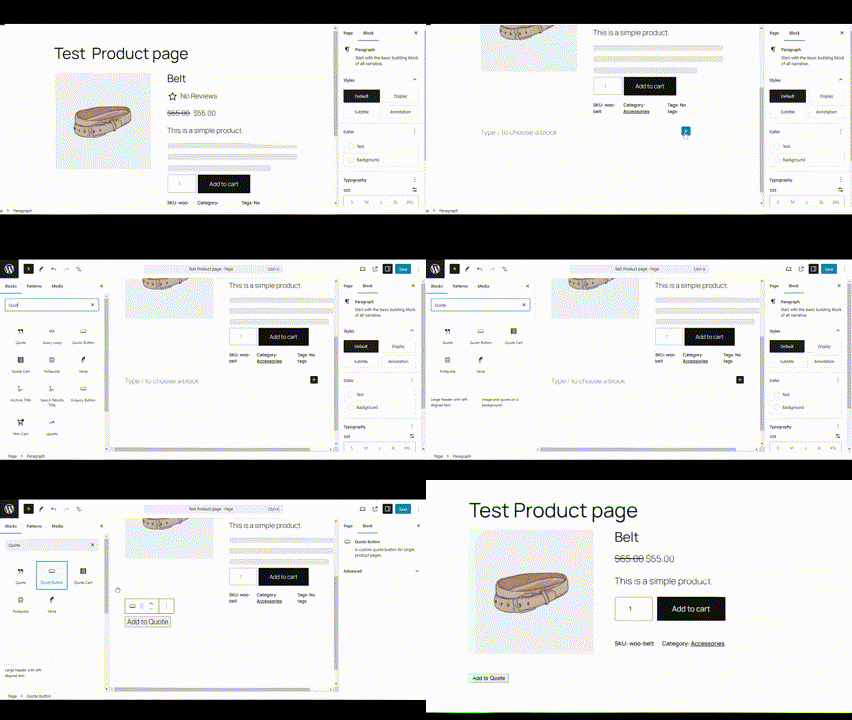
This block inserts an “Add to Quote” button on product pages, allowing customers to select items they are interested in and request a quote. Perfect for wholesale or B2B stores that offer custom pricing or bulk orders.
How it works
Customers can click the “Add to Quote” button, build a list of items, and then submit their quote request to the store admin. The store owner can review and respond with a tailored offer.
Excellent For
Pro
Wholesale Order List Page
This block displays a dedicated Wholesale Order List Page, where all wholesale products are showcased. Wholesalers can be directed to this page to browse and purchase products directly.
How it works
The page lists wholesale-specific products, making it easy for wholesale customers to place bulk orders without navigating the entire store.
Excellent For
