Brief Introduction #
The Dynamic Pricing Rules Module in CatalogX Pro allows admins to create customized discount rules for specific products, product categories, and user roles. This module makes it easy to set up various discounts that enhance your store’s appeal, such as special pricing for select items, promotions based on customer segments, and category-wide discounts. This flexibility helps you cater to diverse customer needs and shopping behaviors, driving sales and boosting loyalty. Transform your pricing strategy with these customizable options tailored to your business goals!
Requirements #
Configuration of the Module from Admin End #
To enable the Dynamic Pricing Rules Module, navigate to the admin dashboard and go to CatalogX > Modules. Simply enable the “Dynamic Pricing Rules” module.

Configuration Steps #
Once the module is enabled, you’ll have the option to add special discounts based on products, categories, users, or roles. Here’s how to get started:
- Go to the Dynamic Pricing Rules submenu.
- Click on the “Add New Rule” button to open a pop-up with the following options:
- Name: Enter a name for the discount rule.
- Applicable For: Choose whether the discounts apply to products or product categories.
- Applied On: Select the specific product or category for the rule.
- For Who: Specify a user name or user role for whom the discount will apply.
- Discount: Set the discount amount and type.
- Product Quantity: Define the quantity required for the discount to take effect.
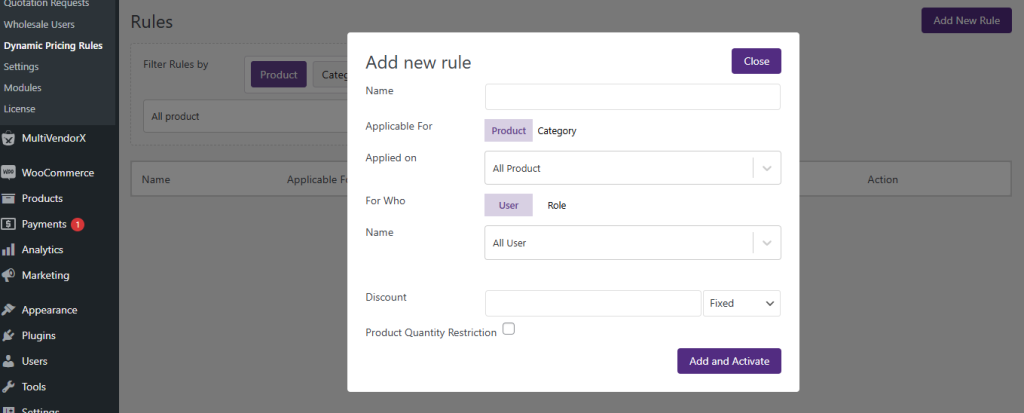
Finally, click the “Add and Activate” button to save your discount rule. You’re all set!
Once the rules are added, they will be displayed on the page accordingly. Additionally, there are options to filter the rules by products, categories, users, and user roles.
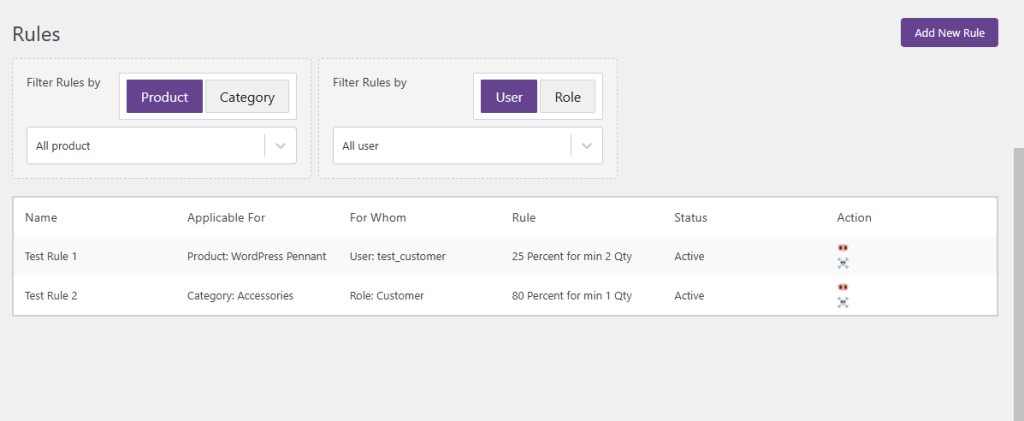
The added rules can be edited and updated, or the admin can choose to delete them from this section.

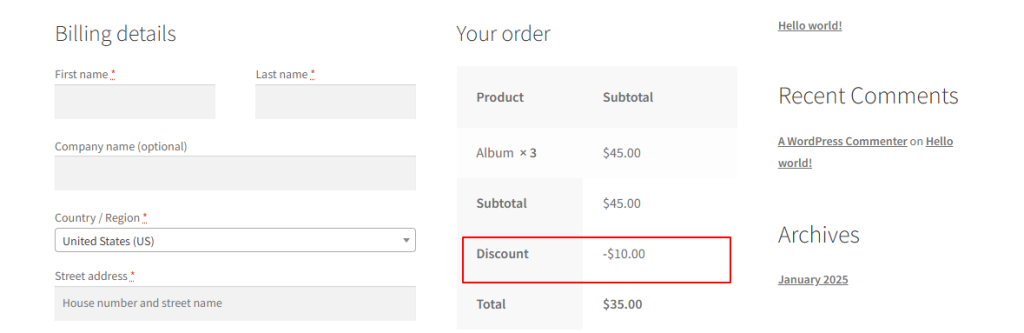
Follow the images below to understand how the rules will be displayed on the frontend.