Brief Introduction #
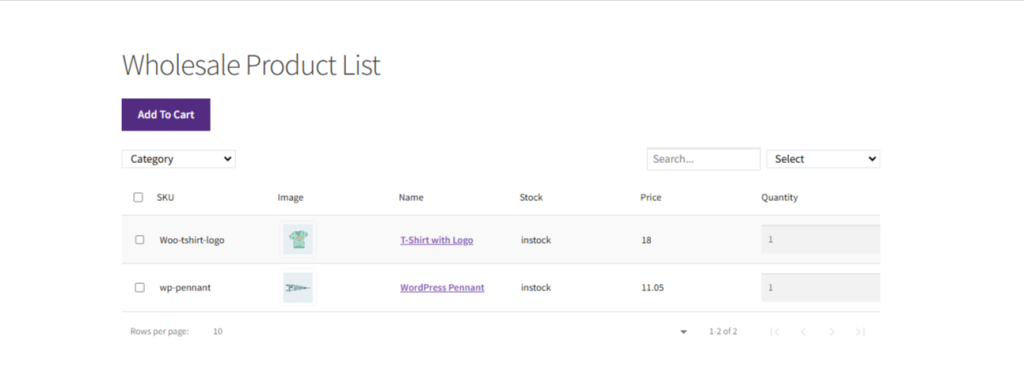
The Wholesale Pricing module of CatalogX enables customers to become wholesale users, providing them with customized wholesale pricing. This module allows for the setup of individual wholesale prices for each product, ensuring that designated users receive tailored pricing that meets their specific needs. With this feature, businesses can efficiently manage and offer special rates to their wholesale customers, enhancing their shopping experience and fostering long-term relationships.
Requirements #
Configuration of the module #
As always you need to start by enabling the “Wholesale Pricing” module of the CatalogX Plugin by following the below steps –
- Go to the admin dashboard.
- Click on the “CatalogX” option in the navigation menu.
- Once the submenu list appears, click on the “Module” option.
- Enable the “Wholesale Pricing” module accordingly.

Configration of Wholesale Settings #
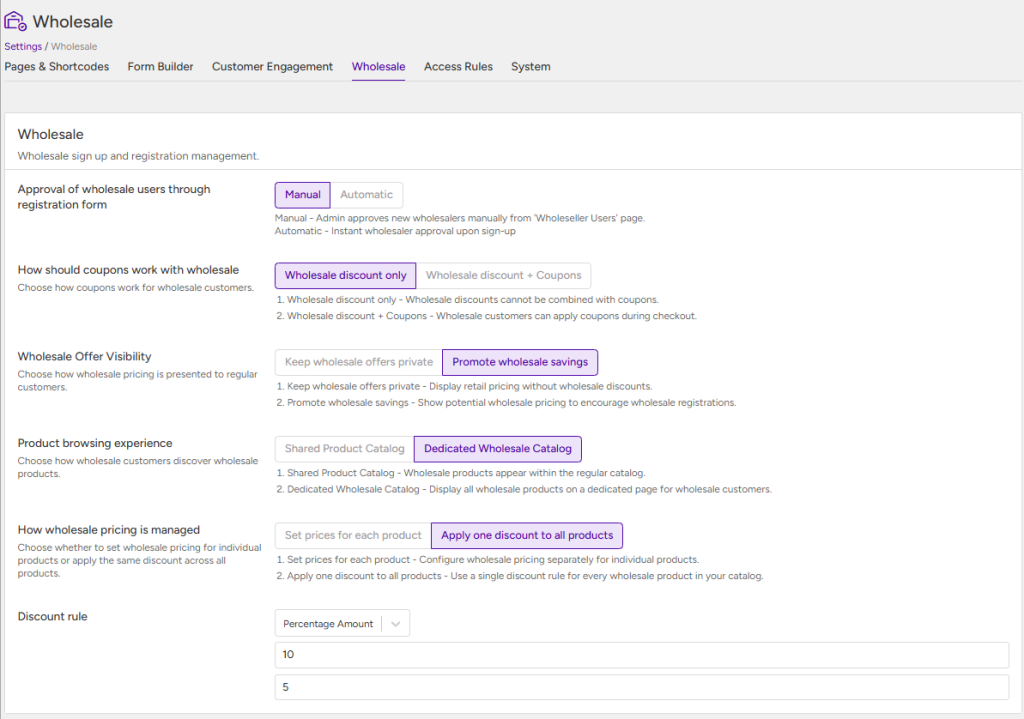
Once the Wholesale module has been enabled, you can configure its settings by navigating to CatalogX → Settings → Wholesale. This section provides various configuration options to customize the module according to your business requirements.
The following settings are available:
- Approval of Wholesale Users Through the Registration Form – This setting determines how wholesale registration requests are handled. You can choose to automatically approve all wholesale registration requests, manually review and approve requests from the Wholesale Users submenu, or automatically assign the Wholesale User role to all newly registered users by default.
- How Should Coupons Work with Wholesale – This setting lets you decide whether wholesale customers can use coupons in addition to receiving wholesale pricing. You can either restrict wholesale customers to wholesale pricing only or allow them to apply eligible coupons along with their wholesale discounts.
- Wholesale Offer Visibility – Control how wholesale offers are displayed to customers. You can choose to keep wholesale pricing and offers visible only to wholesale users or display promotional wholesale pricing to all visitors to encourage customers to register as wholesale buyers.
- Product Browsing Experience – Choose how wholesale users access wholesale products. You can allow them to browse products directly through the default WooCommerce Shop page or provide a dedicated Wholesale Product List for a more personalized shopping experience
- How Wholesale Pricing Is Managed – Select how wholesale pricing should be applied across your store. You can either configure pricing individually for each product or apply a common discount rule to all products.
Customizing the Wholesale Registration Form #
To customize the Wholesale Registration Form, navigate to CatalogX → Settings → Form Builder → Wholesale. From this page, you can add, edit, remove, or rearrange the registration form fields to suit your business requirements.
The Wholesale Registration Form Builder supports the following field types:
- Text – Adds a single-line text field for short user inputs, such as a company name or designation.
- Email – Adds an email input field that validates the email address entered by the user.
- Textarea – Adds a multi-line text field for collecting longer responses or additional information.
- Checkbox – Allows users to select one or more options from a list.
- Radio Button – Allows users to select a single option from multiple predefined choices.
- Multiselect – Enables users to select multiple options from a dropdown list.
- Attachment – Allows users to upload supporting files or documents as part of the registration form.
- Section – Organizes the registration form into separate sections, making it easier for users to complete.
- Date Picker – Allows users to select a date using a calendar interface.
- Time Picker – Allows users to select a specific time using a time picker.
- Terms & Conditions – Adds a mandatory acceptance checkbox that requires users to agree to your terms and conditions before submitting the registration form.
Note: While adding form fields, you can define the maximum character limit for text-based inputs, control the visibility of each field, and mark fields as Required to ensure users provide the necessary information before submitting the form.

How to mark a product as Wholesale product #
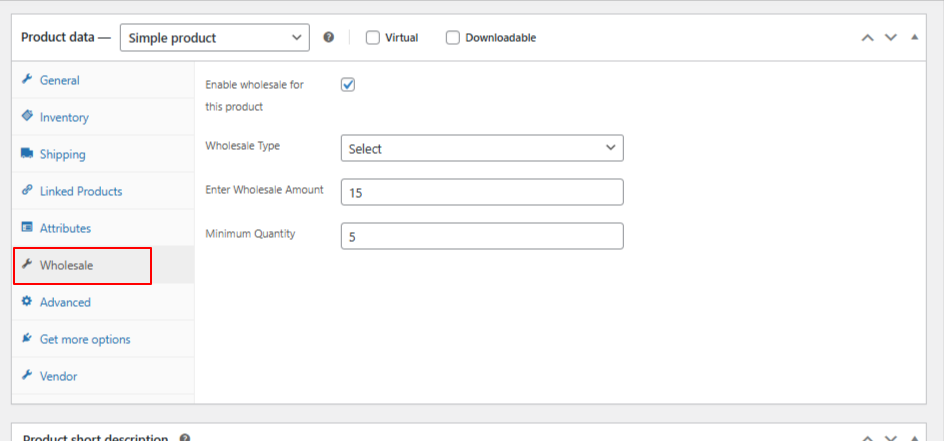
To mark a product as wholesale product you just need to go to the admin dashboard >> Products >> All products, select the product that you want to make a wholesale product >> Under the product meta go to the “Wholesale” tab and add the following details accordingly.
Enable wholesale for this product
- Wholesale Type
- Enter Wholesale Amount
- Minimum Quantity
How can the customer request to become a Wholesale customer #
After the admin activates the “Wholesale” module:
- During registration on the WooCommerce My Account page, customers can opt to become Wholesale users.
- Alternatively, for the registration
- A “Wholesale” tab appears in the “My Account” page.
- Users can access a “Wholesale registration” form through this tab.
- By completing and submitting this form, users can apply for Wholesale status.

How can admin approve the Wholesale user request #
Now let us see how the admin can manage the Wholesale request from their end –
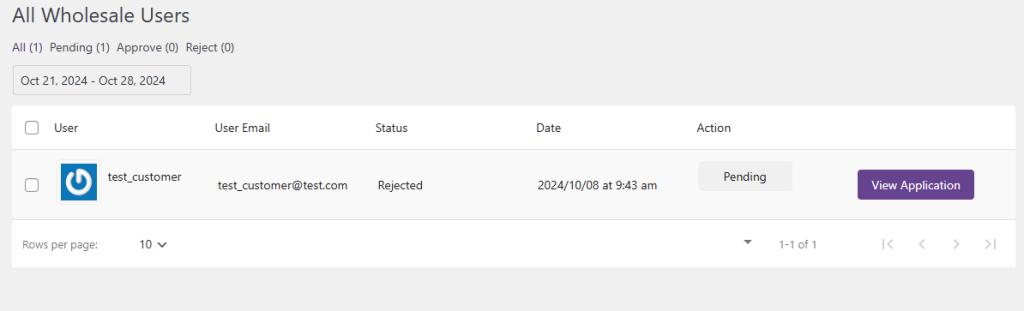
- Navigate to the Catalog menu in the admin panel.
- From the submenu list, select “Wholesale Users”.
- In this section, admins can:
- Review pending Wholesale user requests
- Accept qualified applicants
- Reject unsuitable requests
Once the users become a wholesale user of the site they will have an special access to the wholesale product list on the site.