Brief Introduction #
The Wholesale Pricing module of CatalogX enables customers to become wholesale users, providing them with customized wholesale pricing. This module allows for the setup of individual wholesale prices for each product, ensuring that designated users receive tailored pricing that meets their specific needs. With this feature, businesses can efficiently manage and offer special rates to their wholesale customers, enhancing their shopping experience and fostering long-term relationships.
Requirements #
Configuration of the module #
As always you need to start by enabling the “Wholesale Pricing” module of the CatalogX Plugin by following the below steps –
- Go to the admin dashboard.
- Click on the “CatalogX” option in the navigation menu.
- Once the submenu list appears, click on the “Module” option.
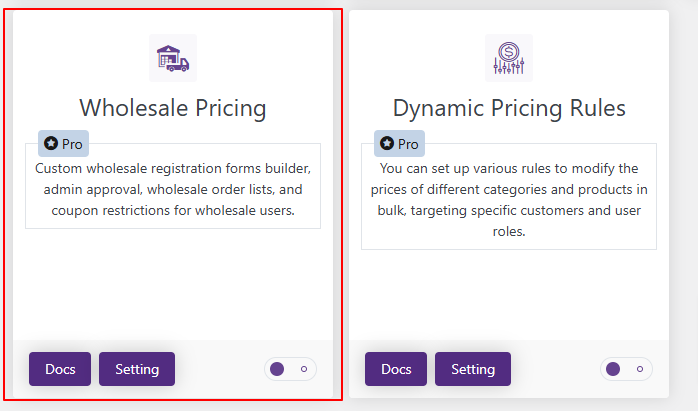
- Enable the “Wholesale Pricing” module accordingly.
Now let’s configure the settings related with this module –
Wholesale #
Let us first discuss the settings one by one –
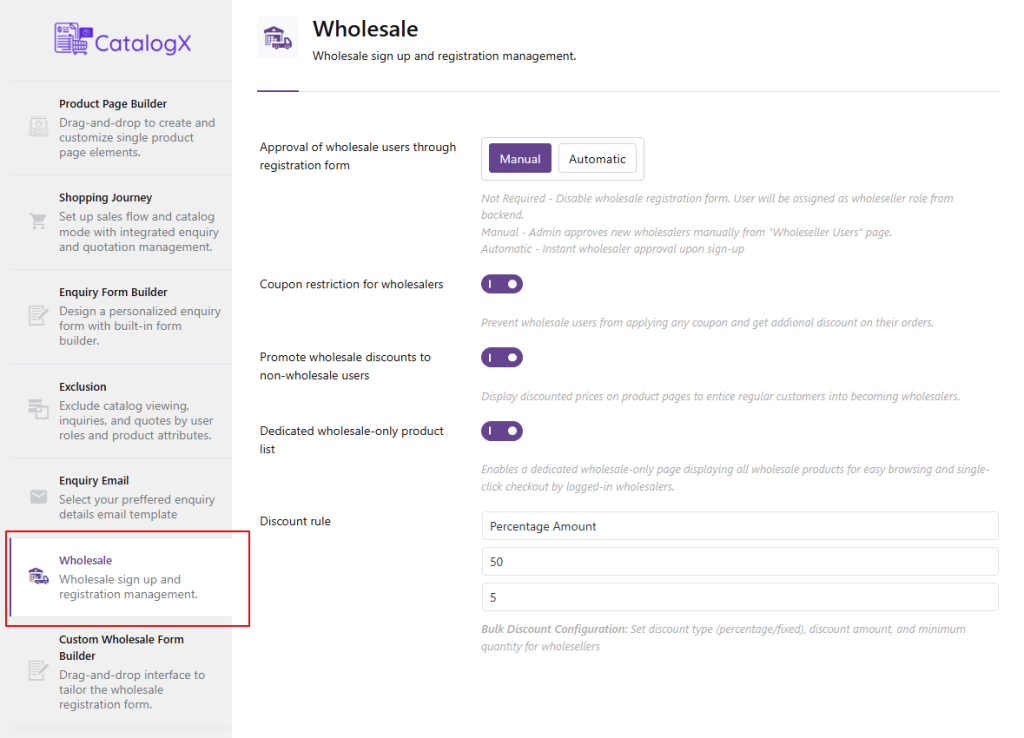
- Approval of Wholesale users through registration form – Here the admin gets the option to set if he wants the “Wholesale registration request” to be approved automatically or if he wants to manually approve the request from the Wholesale user list submenu or if he wants all the users to become “Wholesale user” by default.
- Coupon Restriction for wholesalers – Enabling this you can ensure that the wholesale users do not have the option to apply any coupon for their orders.
- Promote wholesale discounts to non-wholesale users – Once this option is enabled the wholesale users will get redirected to the Wholesale product list from where the users can view all the Wholesale products.
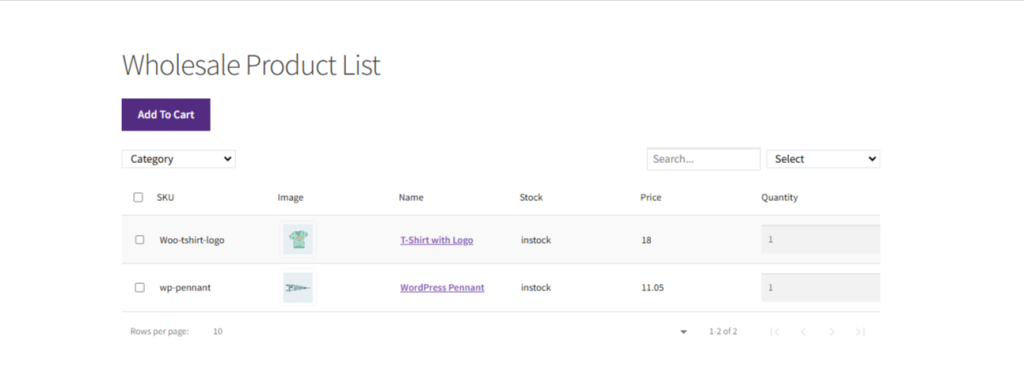
- Dedicated wholesale-only product list – Enabling this ensures all wholesale products get displayed in a list format, allowing users to view, purchase and checkout directly from this section without navigating from different places.
- Discount Rule – From this section the admin can select the discount type, discount amount and minimum quantity for availing the discounts on Wholesale products.
Custom Wholesale form builder #
In this section the admin gets the option to customize the “Wholesale registration” form fields for the users who want to register to become wholesale users.
Here you can add the form title and add different fields types to appear on the wholesaler registration form –
- Textbox – With this option you can ask your user to enter a small text for the form field.
- Email – Ask the user to add the email address through this format.
- Textarea – Use the textarea to ask users to add a description about a particular product or essential features of their store.
- Checkboxes – You can give users options to select from by using the checkbox format.
- Multi-Select – Unlike a checkbox format, the multi-select option lets your users choose multiple options.
- Radio Buttons – Radio buttons provide options for users to select their desired response.
- Drop-Down – The drop-down option permits your users to pick the preferred option. You can upload your alternatives within the label area and use the add new choice button to maintain adding new choices.
- reCAPTCHA – The reCAPTCHA format option is a good way of keeping your site safe. Its advanced risk analysis engine helps keep malicious software from engaging in abusive activities on your website. You can also register for a reCAPTCHA on google by selecting this link. Given below are the two reCaptcha types –
reCAPTCHA v2 – The reCAPTCHA v2 requires the user to click the “I’m not a robot” checkbox and can serve the user an image recognition challenge.
Recaptcha Script – You can safely add your reCAPTCHA v2 to your marketplace by following this documentation.
reCAPTCHA v3 – Unlike the reCAPTCHA v2 option, the reCAPTCHA v3 runs in the background and generates a score based on a user’s behavior. The higher the score, the more likely a user is human. Here you need to add a site key and secret key. To get your Site Key and Secret Key follow these steps –
Go to the reCaptcha page. Once there, select the Admin Console option.
Enter a label for your ReCaptcha and select the V3 checkbox.
Add the URL for your site in the Domain section.
Accept the terms of service and click Submit. Copy the Site Key and Secret Key that Google generates and paste them here.
- Attachment – The attachment format is helpful when you want your users to upload files.
- Section – The section format divides the enquiry form into sections.
- Date picker – The admin can select this option to let user pick a date in the form
- Time picker –Adding this section will give users the option to pick a time.
Note – While adding the form fields the admin can also limit the character limit for the input of a field. They can choose the visibility of the added fields and also mark the fields as “Required”.
How to mark a product as Wholesale product #
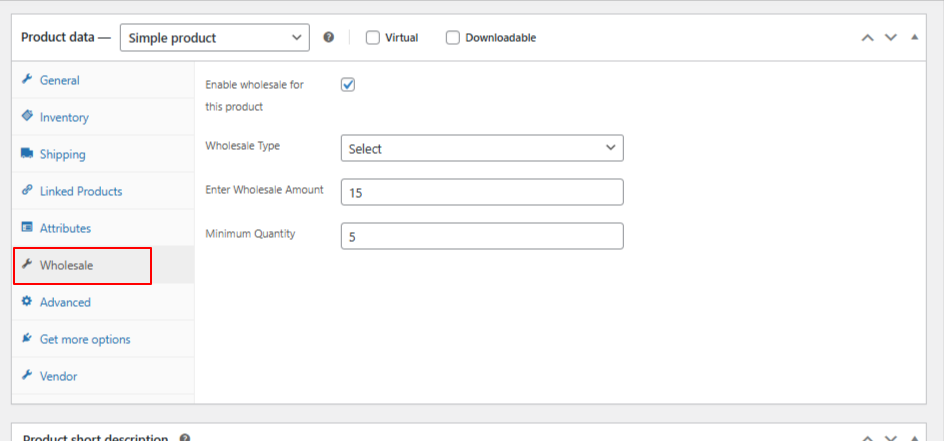
To mark a product as wholesale product you just need to go to the admin dashboard >> Products >> All products, select the product that you want to make a wholesale product >> Under the product meta go to the “Wholesale” tab and add the following details accordingly.
Enable wholesale for this product
- Wholesale Type
- Enter Wholesale Amount
- Minimum Quantity
How can the customer request to become a Wholesale customer #
After the admin activates the “Wholesale” module:
- During registration on the WooCommerce My Account page, customers can opt to become Wholesale users.
- Alternatively, for the registration
- A “Wholesale” tab appears in the “My Account” page.
- Users can access a “Wholesale registration” form through this tab.
- By completing and submitting this form, users can apply for Wholesale status.

How can admin approve the Wholesale user request #
Now let us see how the admin can manage the Wholesale request from their end –
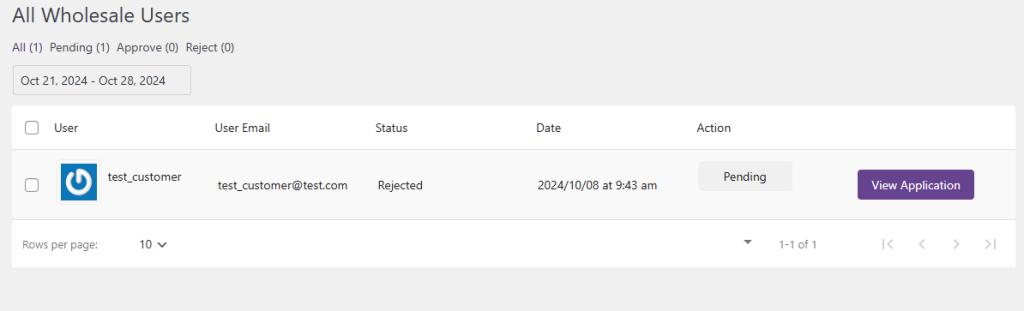
- Navigate to the Catalog menu in the admin panel.
- From the submenu list, select “Wholesale Users”.
- In this section, admins can:
- Review pending Wholesale user requests
- Accept qualified applicants
- Reject unsuitable requests
Once the users become a wholesale user of the site they will have an special access to the wholesale product list on the site.